FileHider Pro Icon

FileHider Pro

Video Tutorial for Install and Setup

Software Concept

A multi-isolation model designed specifically for managers. Create an unlimited number of groups: work, personal, family, projects, etc., with support for independent unlock passwords. You can authorize subordinates to view work groups while keeping your private data absolutely hidden.

Target Audience

  • Bosses who authorize different subordinates with distinct passwords to handle specific computer tasks for them.
  • Individuals who need to discreetly manage photos, videos, and private files across multiple personal relationships.
  • Professionals handling projects for multiple companies, ensuring clients cannot see other clients' data to prevent compromising future business opportunities.
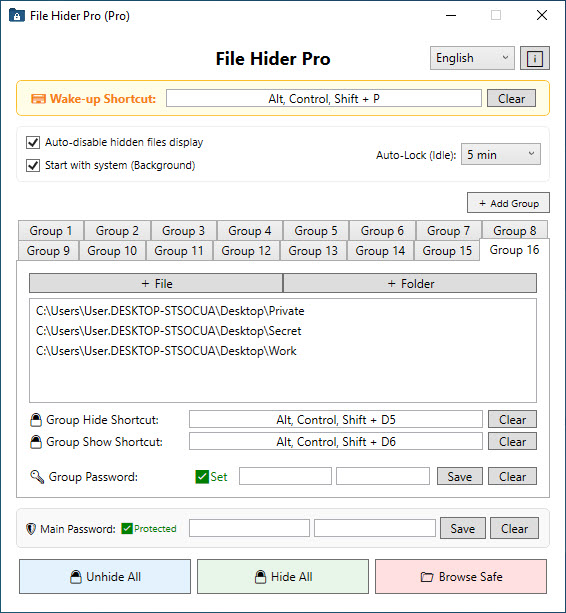
FileHider Pro Main Interface

User Interface introduction:

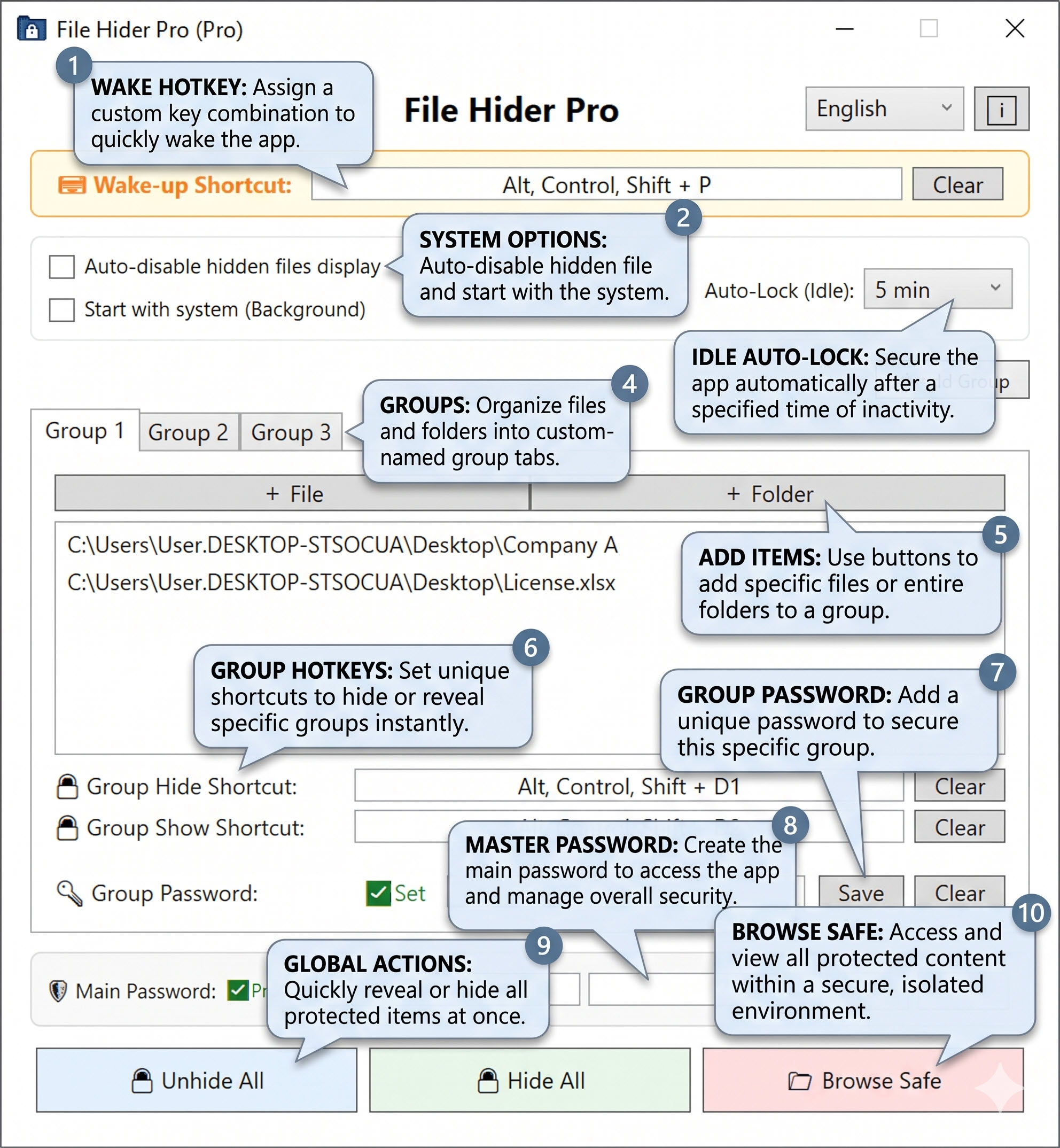
  1. Wake Hotkey: This feature allows you to assign a custom keyboard combination (a shortcut) to instantly open or "wake up" the application from the background, giving you quick access whenever you need it.
  2. System Options: These are general system-level settings. You can choose to automatically disable the display of hidden files within Windows, and you can also set the application to start automatically in the background when your computer boots up.
  3. Idle Auto-Lock: For enhanced security, this function automatically locks the application interface after a specified period of inactivity (for example, 5 minutes). Once locked, you will need to re-enter your password to access the app again.
  4. Groups: You can organize your protected files and folders into different categories using custom-named group tabs (such as Group 1, Group 2, etc.). This makes managing and categorizing multiple hidden items much easier and neater.
  5. Add Items: By using the "+ File" or "+ Folder" buttons, you can easily browse your computer's directory and select specific individual files or entire folders to add into the currently active group for protection.
  6. Group Hotkeys: This allows you to set unique, dedicated keyboard shortcuts for a specific group. You can configure one shortcut to instantly hide the group's contents and another shortcut to instantly reveal them, without needing to open the main software window.
  7. Group Password: You can add an extra layer of security by setting a unique, independent password specifically for an individual group. This means someone would need this specific password to access the files in this group, even if the main app is unlocked.
  8. Master Password: This is the primary password used to secure the entire application. It acts as the main gateway required to open the software interface, change settings, and manage your overall security.
  9. Global Actions: These are convenient quick-action buttons ("Unhide All" and "Hide All") that allow you to instantly reveal or conceal every single protected item across all of your created groups with just one single click.
  10. Browse Safe: This feature provides a secure, isolated viewing environment. It allows you to access, open, and view your protected files safely without actually unhiding them or exposing them in your normal Windows file explorer.
User Interface Introduction

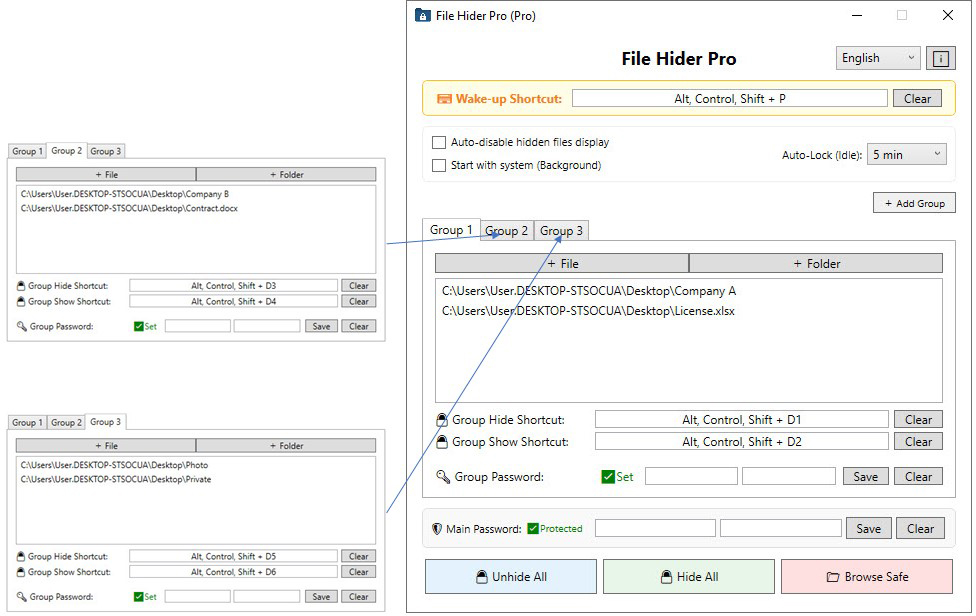
Multi-Group Password and Hotkey Demonstration

  • Group 1: Hide: Ctrl+Alt+Shift+1 | Unhide: Ctrl+Alt+Shift+2 | Pwd: passpass1
  • Group 2: Hide: Ctrl+Alt+Shift+3 | Unhide: Ctrl+Alt+Shift+4 | Pwd: passpass2
  • Group 3: Hide: Ctrl+Alt+Shift+5 | Unhide: Ctrl+Alt+Shift+6 | Pwd: passpass3

Usage Example

While the program is running hidden in the background, if you want to view the "Photo" and "Private" folders on your desktop, simply press the Group 3 unhide hotkey (Ctrl+Alt+Shift+6) and enter the password "passpass3" to unhide the folders. When you are finished, press the hide hotkey (Ctrl+Alt+Shift+5) to hide "Photo" and "Private" once again.

Multi-Group Demonstration